We’re glad to have you in our communities!! Below is a quick guide to navigating this platform:
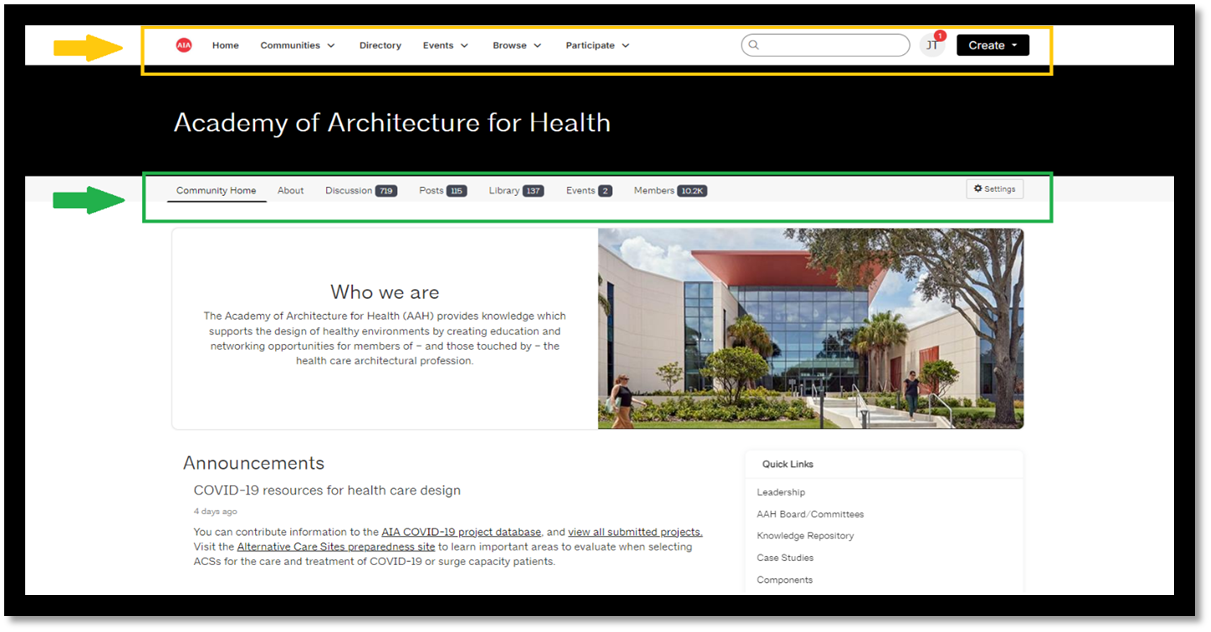
Every community's site on our platform has two menus
- At the top (yellow arrow) is the menu for the entire AIA Community Hub platform. This platform has over 20 different AIA community sites on it! Use this menu to get information from multiple communities at the same time.
- Underneath the community’s name (green arrow) is a series of tabs that are specific to the community site. Use these tabs to navigate the community you are visiting.
Community Navigation: Tabs
Every community has a set of tabs across the site underneath the name of the community itself—this is your first step for navigating your community:
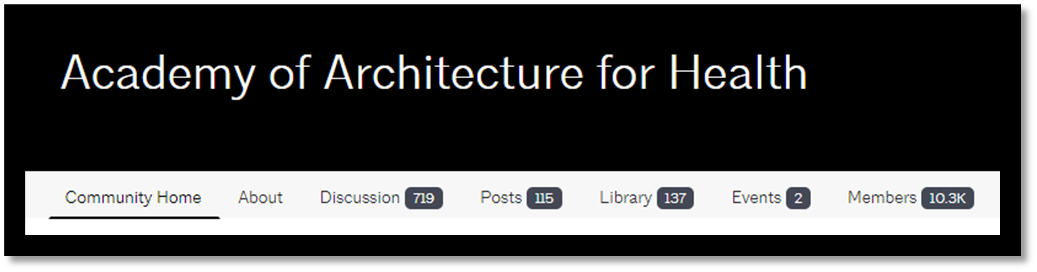
- Community Home - is the homepage (or dashboard) for your community. You’ll find quick links to the most important community information, and dynamic boxes that give you a sneak peek at the content you'll find on the other tabs.
- About – is a page dedicated to the history, mission, and core values of your community.
- Discussion - is our message board for community members. Post your own question, or respond to others in your peer network—just make sure you read through the posting guidelines first!
- Library - is a collection of files and documents—look for white papers, photos, and post conference materials here
- Posts - is the place for long-form content. Post your own blog, or find articles published by members of the community
- Our Events - is where you can find out what's coming up within the community, including webinars and conferences
Community Navigation: Homepage
In addition to the tabs, every community site has some of the same basic information on their homepage:
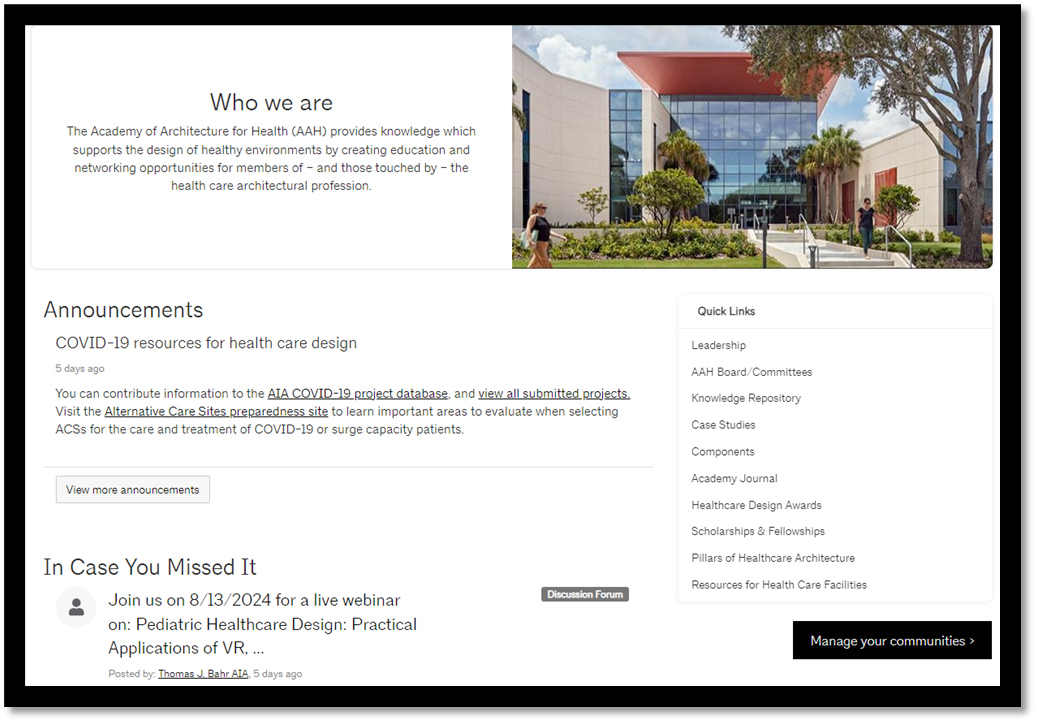
- Who we are - every community has a summary of their purpose on the homepage, so you know exactly what they're working on!
- Quick Links - to help you find some of the most important information immediately. Every quick links starts with the leadership page, and then will contain other resources specific to their communities.
- Manage your communities button - adjust which communities you belong to at any time! Click through and login to the main site to Edit your profile. The community subscriptions are listed on the Interest Areas page.
- Dynamic boxes (e.g. In Case You Missed It) - there are several areas on each page, each designed to give you a sneak peak at the most current or most important information available on the community tabs.
Platform Navigation: AIA Community Hub Menu
At the very top of the screen is the menu bar for navigating the entire platform:

The 3 most used options on this menu are:
- Communities - use this to view a list of all the communities available on AIA Community Hub, or to see a list of your own communities
- Browse - use this to browse discussion posts across all the communities to see what people are talking about!
- Participate - use this to post a message or share a file. Make sure you indicate which community you want to tag it to!
- Search – know what you are looking for? Use the free form search box to research topics and content that interest you across all accessible communities.
Also, don't forget to update your profile! Click on your initials (or profile picture) in the upper right corner (where the yellow box is, above) to visit your profile and update it regularly. Need help with this? Visit our guide on updating your profile.
Questions? Please reach out to us at knowledgecommunities@aia.org.
Account issues? membersupport@aia.org.
Feedback? aiacommunityhub@aia.org